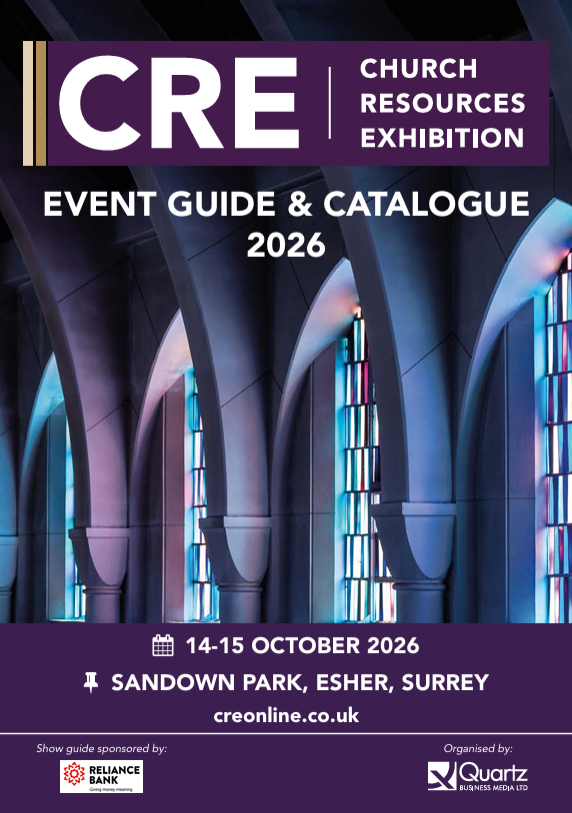
CRE Event Guide & Catalogue 2026

The CRE 2026 Event Guide & Catalogue is now available, packed with everything you need to make the most of your time at the exhibition.

Inside you’ll find:

  • The full exhibitor list and floorplan
  • Details of the Church Leaders Conference
  • The Building Resources Conference programme
  • Information about our free workshops
  • Profiles of exhibitors and the resources they offer
  • Details of CRE Cares and this year’s charity partnerships
Brochure

ARTICLE STYLES

Articles are the building blocks within each section. You can add anywhere from 1 to 4 articles per section.

You also have the option to add animations, so each article can appear one after the other in a smooth sequence.

There are four main styles you can choose from:

  • Plain
  • Boxed
  • Bordered
  • Boxed and Bordered

ASP will automatically apply default styles for your articles that match your brand. If you want to customise these defaults, you can do so by going to:

Settings > Design & appearance > Elements > Articles

After adding your content, you can also customize each article individually to suit your needs.  Below, you'll find some examples to help you get started!

Article Style 1: Plain

Sample Image

Article Title

This is your plain article style.
You can add animations to each article.

Article Title

This is your plain article style.
You can add animations to each article.

Article Title

This is your plain article style.
You can add animations to each article.

Article Style 2: Boxed

Article Title

You can set the background to have a colour, gradient, image, pattern or video.

You also have the option to add rounded corners.

Article Title

You can set the background to have a colour, gradient, image, pattern or video.

You also have the option to add rounded corners.

Article Title

You can set the background to have a colour, gradient, image, pattern or video.

You also have the option to add rounded corners.

Article Title

You can set the background to have a colour, gradient, image, pattern or video.

You also have the option to add rounded corners.

Article Style 3: Bordered

Article Title

You can set the border to be any colour or thickness.

You also have the option to add rounded corners.

Article Title

You can set the border to be any colour or thickness.

You also have the option to add rounded corners.

Article Title

You can set the border to be any colour or thickness.

You also have the option to add rounded corners.

Article Title

You can set the border to be any colour or thickness.

You also have the option to add rounded corners.

Article Style 4: Boxed and Bordered

Article Title

This is the boxed and bordered style combined.

You can set the background to have a colour, gradient, image, pattern or video.

You can set the border to be any colour or thickness.

You also have the option to add rounded corners.

Article Title

This is the boxed and bordered style combined.

You can set the background to have a colour, gradient, image, pattern or video.

You can set the border to be any colour or thickness.

You also have the option to add rounded corners.

Article Title

This is the boxed and bordered style combined.

You can set the background to have a colour, gradient, image, pattern or video.

You can set the border to be any colour or thickness.

You also have the option to add rounded corners.

Article Title

This is the boxed and bordered style combined.

You can set the background to have a colour, gradient, image, pattern or video.

You can set the border to be any colour or thickness.

You also have the option to add rounded corners.

Font Sizes:

You can display your text in different sizes

Font Style 1

xx - small

x - small

small

normal

large

x- large

xx- large

xxx- large

ultra- large

ultra- x-large

ultra- xx-large

ultra- xxx-large

Font Style 2

xx - small

x - small

small

normal

large

x- large

xx- large

xxx- large

ultra- large

ultra- x-large

ultra- xx-large

ultra- xxx-large

Font Colours:

You can display your text in different colours

From your palette of colours

Text - Colour: One
Text - Colour: Two
Text - Colour: Three
Text - Colour: Four
Text - Colour: Five
Text - Colour: Six
Text - Colour: Seven
Text - Colour: Eight

Additional colours

Text - Colour: Text
Text - Colour: Text Muted
Text - Colour: White

And you can combine the different font options

Don't forget to use the   format eraserformat eraser button to remove any existing styles before applying a new style

Text - Colour: One & ultra- xxx-large

Text - Colour: Three & x - small